Manual › Log Master › Starting a scan
Starting a scan
The capture screen for a full log. Requires a device with a LiDAR sensor.
Documents Log Master 1.04.1 · updated 2026-10-25
Scanning a log
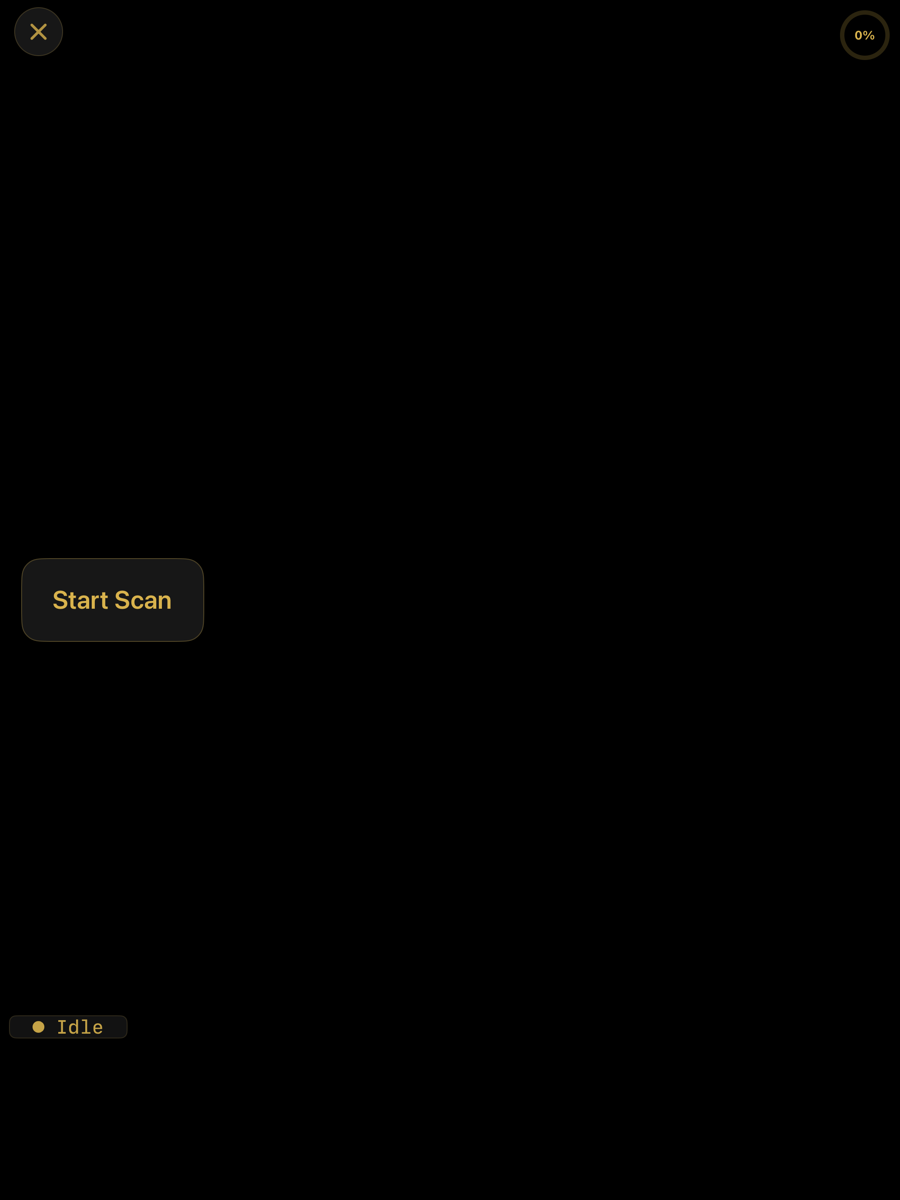
Log scanning — main menu › Log Scanning. Framing a log on the mill before capture.
Controls
Controls
Element
Position
Description
Close
top left
Leaves the capture screen without saving.
Coverage
top right, 0 %
How much of the log has been captured so far.
Status
bottom left, Idle
The tracker's state. Idle before capture begins.
Start Scan
centre left
Begins capture. The same button ends it once capture is running.
Capturing
Capture runs in two passes: an initial walk that also captures both end faces, then a refining pass. The full sequence:
- Select Log Scanning from the main menu.
- Remain still for three seconds while the AR view starts, then start the scan.
- Standing at one end, walk the length of the log with the device held at 20–30° from the ground, capturing the side and bottom of that side as you walk.
- At the end of the log, begin Log End Scanning: point the cross-hairs at the centre of the log face and tap the screen.
- A green reticle appears — enclose the end face in it and press Done.
- Walk back down the opposite side of the log, again at 20–30° from the ground, capturing the other side and bottom on the way to end #2.
- At end #2, repeat Log End Scanning: cross-hairs on the centre of the face, tap, reticle, Done.
- With both ends scanned, refining begins. Point the reticle at the ground or sawmill bunks and press the button to confirm the background location.
- The refining scan starts — spray-paint around the end of the log where you are standing.
- Walk the length again, this time with the device pointed straight down, to capture the top of the log.
- At the other end, spray-paint around that end's barrel the same way.
- Press the button to finish refining.
- Capture the reference image: position the device so the entire log is visible, then capture. The image is taken the moment capture is initiated, so aim it at the scanned log — it is kept for later reference. If no part of the log's length is in the frame, the photo is not accepted: the screen reads "The log is not in the photo. Point the camera at the log and tap 'Capture Photo' again.", and a prompt offers Retake Photo or Abort Scan (which discards the scan).
- Adjust the end boundaries if prompted, then continue through Next / Continue until the scan finishes processing and the Log Scan view opens. If no end face is found in the photo, the boundary starts from a placeholder circle that must be dragged onto the face; see When no end face is found.