Manual › Log Master › The main menu
The main menu
The first screen on launch. Six entries in two groups, plus Settings.
Documents Log Master 1.03 · updated 2026-09-17
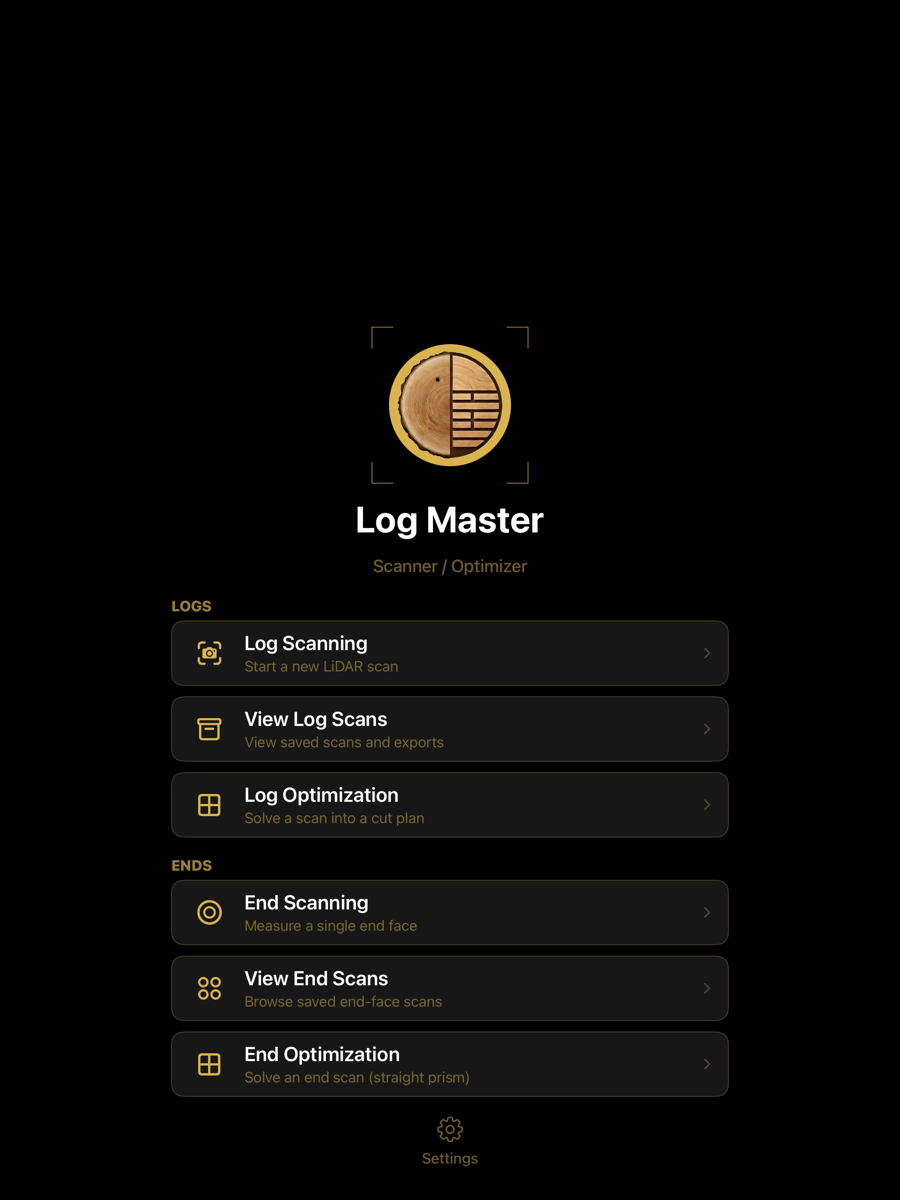
Main menu — the first screen on launch
The menu is divided into two groups. Logs covers the full-log workflow, where the whole length of the log is scanned and the solution accounts for taper and sweep. Ends covers the end-only workflow, where a single end face is measured and the log is treated as a straight prism of an entered length.
Logs
Logs
Item
Subtitle
Opens
Log Scanning
Start a new LiDAR scan
The capture screen for a full log. Walk each side of the log to the far end, capturing an end face at each, then refine. See Starting a scan.
View Log Scans
View saved scans and exports
The scan library. Lists every full-log scan on the device with its length, end diameters and volume.
Log Optimization
Solve a scan into a cut plan
The optimizer menu: open a scan to solve, reach the setup screens, and run batch, reports, import and export.
Ends
Ends
Item
Subtitle
Opens
End Scanning
Measure a single end face
The capture screen for one end face, used when the whole log is not being scanned.
View End Scans
Browse saved end-face scans
The end scan library.
End Optimization
Solve an end scan (straight prism)
The end optimizer menu. An end scan is solved as a straight prism: the traced end face extruded over an entered length, with no taper or sweep.
Settings
The gear at the foot of the menu opens Settings: unit system, log scale rule, project folder, project reports and cache. Settings apply across the app and are not part of any data set.
Scanning requires a device with a LiDAR sensor. Saved scans, setup screens and reports are available on any device.