End face scan
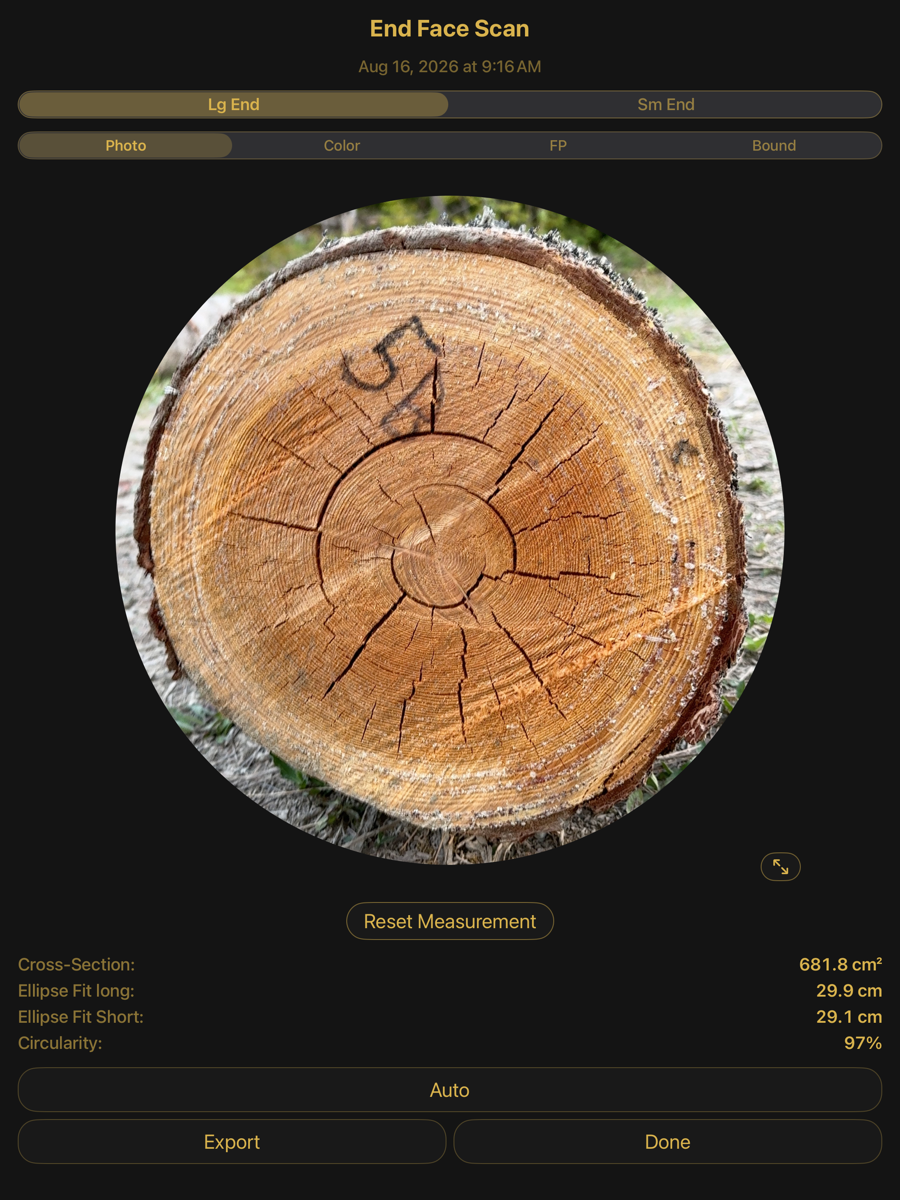
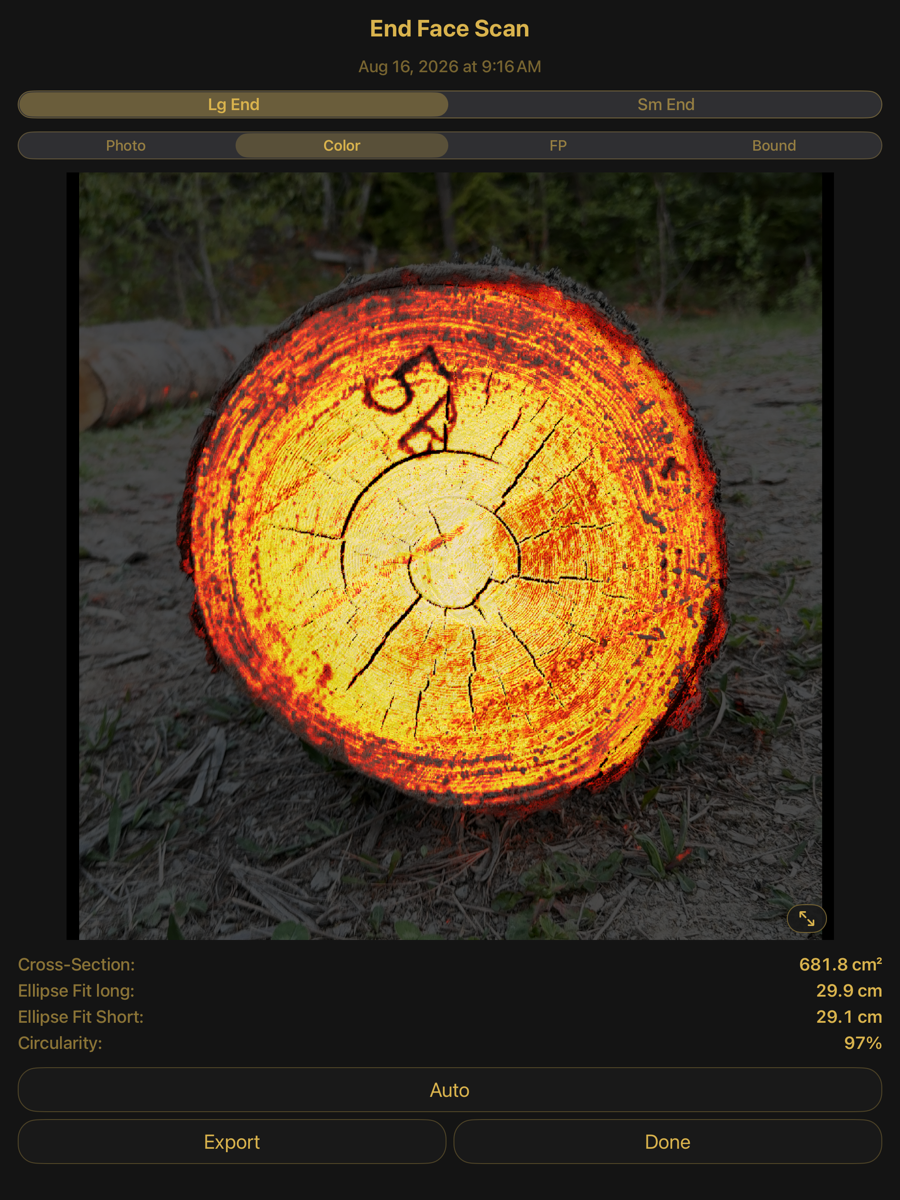
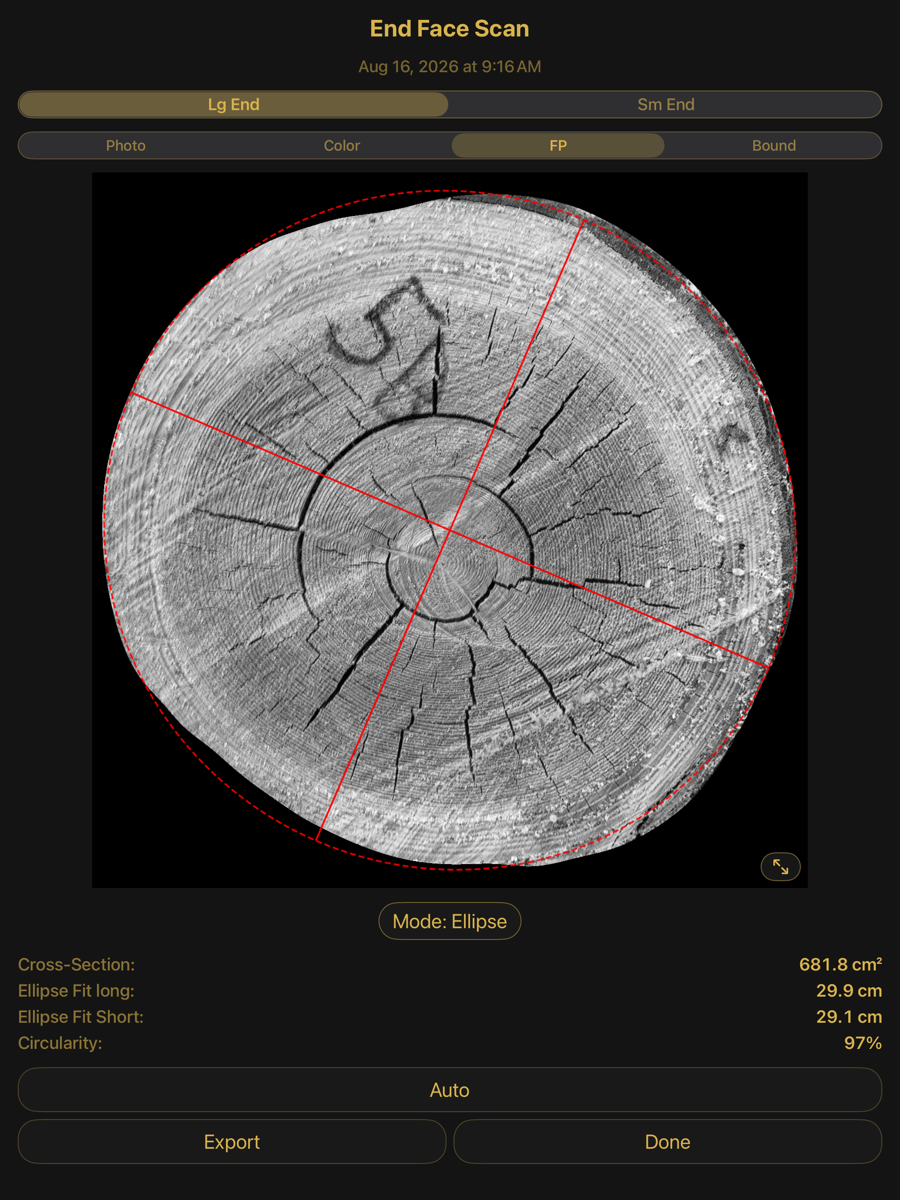
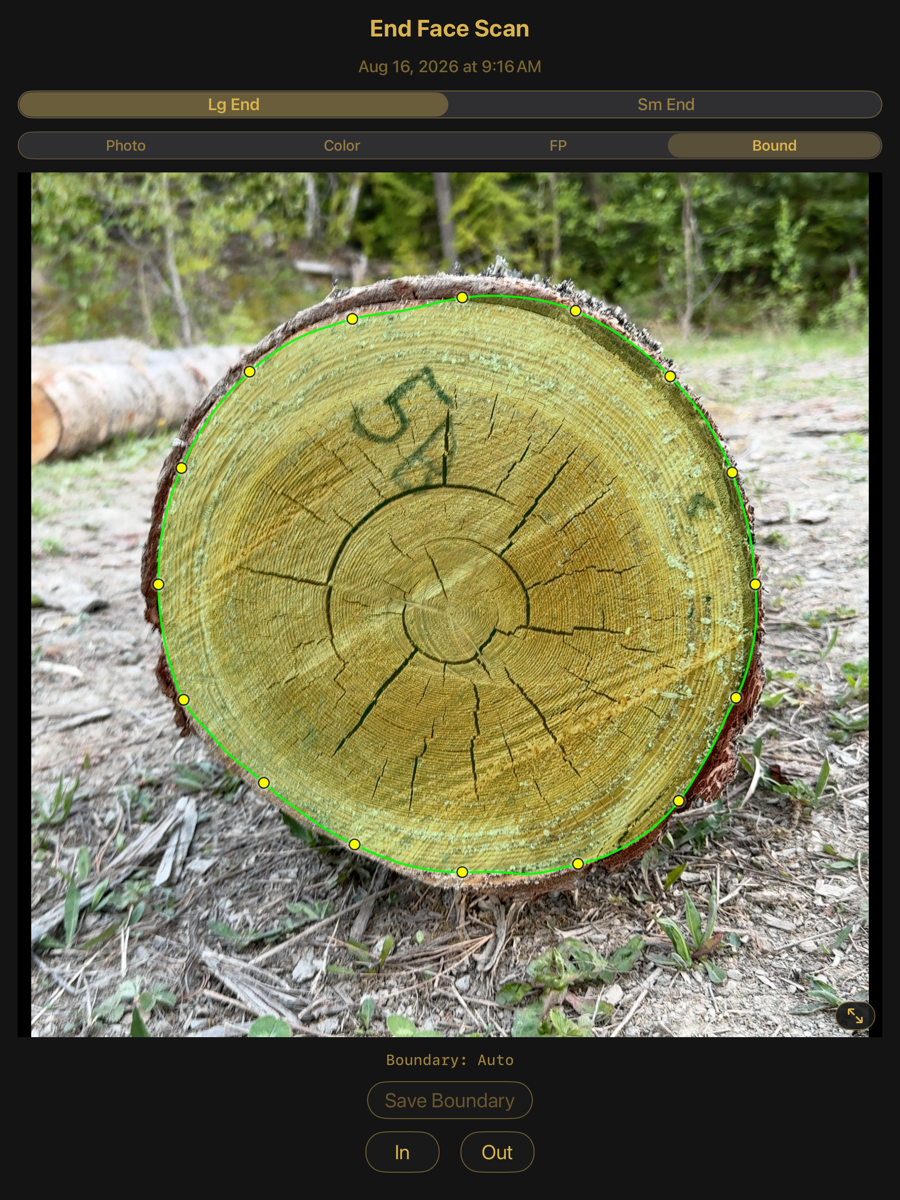
The measured end faces of a log, in four views. The boundary traced here sets the diameter and area used everywhere else.
Documents Log Master 1.04.1 · updated 2026-10-25
End faces and the boundary
Photo — the captured face
Selectors
Selectors
Element
Example
Description
Lg End / Sm End
Lg End
Which end face is displayed. Lg is the large end, Sm the small end.
Photo
selected
The captured photograph, cropped to the detected boundary.
Color
—
The same face rendered as a colour map, which makes the boundary between wood and bark easier to judge than the photograph does.
FP
—
Fingerprint view: the ring structure, with the fitted shape drawn over it.
Bound
—
Boundary editing. The traced outline is shown as draggable points.
Measurements
Measurements
Element
Example
Description
Cross-Section
681.8 cm²
Area enclosed by the traced boundary.
Ellipse Fit long
29.9 cm
Major axis of the ellipse fitted to the boundary.
Ellipse Fit Short
29.1 cm
Minor axis of the same ellipse.
Circularity
97 %
Minor axis over major axis. 100 % is a circle.
Actions
Actions
Element
Example
Description
Reset Measurement
—
Discards a manual boundary and returns to the detected one.
Auto
—
Re-runs boundary detection on this face.
Export
—
Writes the end face and its measurements out.
Expand
⇺
Fills the screen with the face.
The four views
All four show the same face and the same measurements. They differ only in what is drawn.
Color — the face as a colour map
FP — ring structure with the fitted shape
Bound — the traced boundary as editable points
Editing the boundary
In Bound view the outline is drawn as a ring of points that can be dragged. In and Out move the whole boundary inward or outward. Save Boundary commits the edit; until it is saved the detected boundary stands. An edited boundary is recorded separately from the detected one, so the original remains available.
A status line reads Boundary: Auto or Boundary: Manual (unsaved). "(unsaved)" means the manual edit on screen differs from what is committed to the scan — it is still visible and can still be measured against, but Auto is what the optimizer will use until Save Boundary is tapped. Saving switches the label to Manual with no "(unsaved)" suffix, and the choice — Auto or Manual — is then saved with the scan and stands the next time it is opened.
When no end face is found
During the verification that follows an end capture, the app may find no end face in the photo, or find one lying outside the frame. There is then no detected boundary to accept, so the Bound view starts from a placeholder circle on the photo, and the status line, in orange, says what to do: "No boundary found — drag the handles onto the face", or, when the camera was not aimed at the face, "Camera was not pointed at the end face — drag the handles onto the face". The Color view shows the detector's probability map in place of a colour map.
Verification with a placeholder circle
Next / Save Auto Bound
disabled
There is nothing detected to accept, so it stays unavailable. (A full-log capture reads Next; an end-only capture reads Save Auto Bound.)
Save + Continue / Save Manual Bound
enabled once edited
Becomes available as soon as the circle has been dragged onto the face. Saving commits the boundary you traced.
Abort Scan
red button
Discards the scan. After a confirmation ("Abort this scan? Nothing from this scan will be saved. You can scan the log again.") it returns to the main menu. It is the way out when the face is not in the photo at all.
The boundary is the measurement. Every diameter, area and volume figure for that end, and the optimizer's view of the log, follows from it.
Each boundary handle should be placed exactly on the edge between bark and wood, not approximated. The boundary sets both the optimizer's placement precision and the cut sequence's positioning accuracy, so an approximate boundary is fine for a quick check, but adjusting it correctly is necessary for accurate positioning and cutting.